
When not managed properly, business documents can quickly become a complicated mess. Files get scattered across shared drives, email attachments and Microsoft 365 apps, making it harder to find information, to work together and keep everything secure.
SharePoint gives you one central place to store and manage documents, but moving files over isn’t enough. Without a clear structure, the right permissions and consistent processes, the same old problems can stick around.
In this article, we cover 10 SharePoint document management best practices to help you keep files organised, make collaboration easier and stay in control of your business information.
10 SharePoint Document Management Best Practices
As mentioned above, a successful SharePoint document management system needs more than a place to store files. It requires a clear structure, consistent processes and ongoing management. The following best practices can help your organisation build a SharePoint environment that remains useful as your business grows.
Best Practice #1: Plan your SharePoint structure before migrating documents
One of the most common mistakes businesses make is moving existing files into SharePoint without reviewing how they are organised.
If your current shared drive contains duplicate files, inconsistent folder structures or outdated documents, transferring everything without a plan can simply recreate those problems in a new location.
Start by reviewing your existing documents and identifying how different teams use them. Consider which information needs to be shared across the organisation, which documents should remain restricted and whether any files are no longer required. From there, design a SharePoint structure that reflects how your business operates.
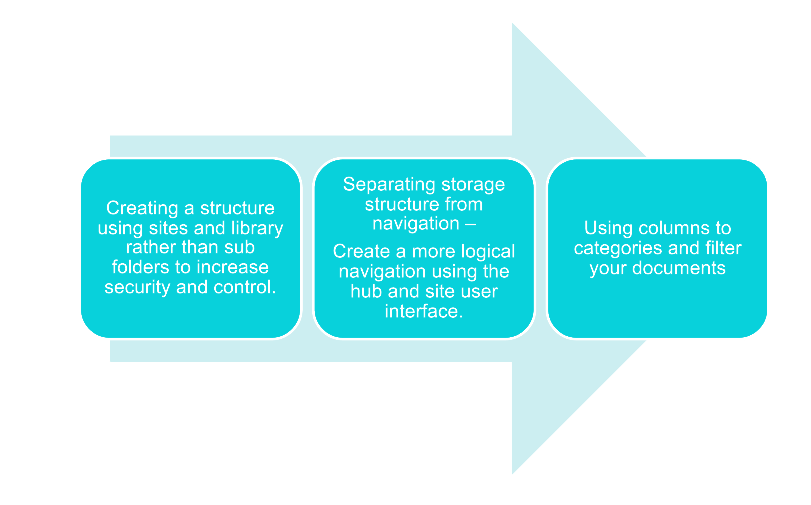
Take the infographic above as an example and think about creating a structure using sites and libraries rather than sub folders to increase security and control. Folders can still be useful, but avoid creating unnecessarily deep folder structures that make documents difficult to navigate. The aim is to make information easy to find and manage, rather than simply replicating your existing file storage system.
Best Practice #2: Use document libraries strategically
Expanding on best practice #1, SharePoint document libraries provide dedicated spaces to store and manage files, making it easier to organise information, find documents and control access. Rather than storing everything in one library, consider creating separate libraries for:
- Policies and procedures
- Project documentation
- Contracts and agreements
- Marketing materials
- Operational documents
This makes it easier to apply relevant metadata, customise views and manage permissions for different teams. Avoid creating too many libraries, though. Group documents by how they’re used, managed and secured, keeping the structure simple enough for employees to find what they need.
Best Practice #3: Use metadata to make documents easier to find
Metadata is information about a document, such as its type, owner, department, project or review date. In SharePoint, metadata helps employees filter, sort and find files without relying solely on folders. For example, a manufacturer could tag technical documents by equipment type, site and review date, while a professional services firm could categorise contracts by client, type and renewal date.
The key is to keep metadata useful and simple. Too many fields or mandatory requirements can make document management more work than it needs to be. Start with a few relevant fields and clear guidelines for completing them. Use predefined options where possible to keep information consistent and easier to search.
Best Practice #4: Establish consistent document naming conventions
A consistent naming convention helps employees understand what a document contains before opening it. Without clear standards, file names can become inconsistent, making it harder to identify relevant information or distinguish between documents.
For example, a file named Final_Report_NEW_v3.docx provides little clarity about its purpose or whether it is genuinely the latest version. A more useful name might be Supplier_Audit_Report_2026.docx, with additional information such as the department, owner or review date stored in SharePoint metadata where appropriate.
Establish naming guidelines that explain how documents should be named, which information should be included, and which abbreviations are acceptable.
It’s also important to remember that SharePoint version history can track document changes, so adding a new version number to every working copy is not always necessary.
Best Practice #5: Configure version history and document approval
Version control is essential when multiple people work on documents, or information needs regular updates.
SharePoint version history tracks changes and lets users restore earlier versions when needed. Review your settings to make sure they suit your business, including how many versions to keep and how long they should be available.
For documents such as policies and procedures, content approval or a review workflow can help ensure changes are checked before publication. Not every document needs formal approval. Apply the right level of control where it matters, without making everyday collaboration more complicated.
Best Practice #6: Manage permissions and access carefully
Effective document management means making information available to the right people without exposing sensitive content unnecessarily.
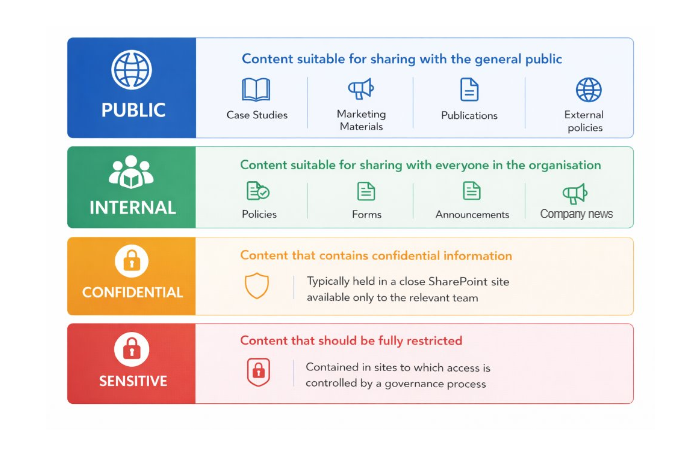
SharePoint allows administrators to control access at different levels, including sites, libraries, folders and individual documents. However, complicated permission structures can become difficult to maintain, particularly as teams and responsibilities change.
Where possible, use clearly defined Microsoft 365 or SharePoint groups to manage access based on roles and responsibilities. For example, a project team might have permission to edit project documentation, while other employees can access approved reference materials without being able to change them.
Make sure you review permissions regularly, particularly when employees change roles, leave the organisation or no longer need access to a project. The aim is to maintain appropriate security without making everyday collaboration unnecessarily difficult.
Best Practice #7: Make documents easier to navigate with views and search
Even a well-organised SharePoint environment can be frustrating if employees struggle to find what they need.SharePoint views let users filter documents by criteria such as department, type, owner or status. For example, a library of operational procedures could have separate views for current documents, items awaiting review and those due for renewal.
Combined with metadata and search, views make it easier to find relevant information without creating duplicate files. When setting up your environment, think about how employees search for documents and build views around their needs. Use clear column names and simple navigation to keep everything easy to find.
Best Practice #8: Automate repetitive document management processes
Manual document management tasks can take up time and increase the risk of missed reviews, inconsistent records or unnecessary delays. Microsoft Power Automate can help organisations automate suitable workflows connected to SharePoint. For example, businesses could use automated workflows to:
- Notify document owners when a review date is approaching.
- Request approval when a document is submitted for review.
- Alert relevant team members when a new document is uploaded.
- Notify users when an approval decision has been made.
- Route documents to the appropriate person or team for action.
Consider a business that manages hundreds of policies and procedures. Instead of relying on employees to remember review dates, an automated workflow could notify document owners when documents are due for review.
Automation should support a clearly defined process rather than reproduce an inefficient one. Before introducing workflows, establish who is responsible for each task and what should happen at each stage. Start with processes that are repetitive, time-consuming or prone to delays, then expand as the benefits become clear.
Best Practice #9: Define document retention and lifecycle management
Not every document needs to stay in SharePoint forever. Some must be kept for legal, contractual or operational reasons, while others become outdated and can be safely removed. The graphic below illustrates the document lifecycle journey and how it should typically be managed.

Microsoft Purview offers retention and records management tools to help organisations manage information in line with their requirements. For example, contracts might need to be retained for a set period, while outdated operational documents should be reviewed and removed when no longer needed.
Before setting retention policies, identify the information you hold, the requirements that apply and who is responsible for managing it. Avoid a one-size-fits-all approach, as different documents have different needs.
Remember, retention policies, backups and version history serve different purposes. All should be considered as part of your wider information management strategy.
Best Practice #10: Provide training and review your SharePoint environment regularly
Even the best-designed SharePoint document management system will struggle if employees do not understand how to use it. Provide practical training that explains where documents belong, how to name and categorise files, how to collaborate with colleagues and how to find previous versions. Make guidance easy to access and provide clear ownership for maintaining the environment. It is also important to review your SharePoint setup regularly. As your organisation changes, existing structures, permissions and workflows may no longer reflect how teams operate.
Periodic reviews should consider:
- Whether employees can find documents easily.
- Whether libraries and metadata remain relevant.
- Whether access permissions are still appropriate.
- Whether document owners are reviewing information on time.
- Whether workflows are operating as intended.
- Whether outdated or redundant content needs attention.
Gather feedback from employees as part of these reviews. The people using SharePoint every day can often identify problems that are not immediately apparent to administrators.
Improve Your SharePoint Document Management with Bridgeall
SharePoint can transform document management, but getting the most from it requires the right structure, processes and security controls.
At Bridgeall, we help organisations optimise SharePoint and Microsoft 365, from initial implementation and document migration to improving existing environments. Whether you need better document libraries, tighter permissions or more efficient workflows with Power Automate, we can help tailor SharePoint to your business needs. Get in touch to improve your SharePoint document management